13.3. Process Visibility
Task 13.3.1: Enable Process Visibility
Edit your cilium-enterprise-values.yaml file so that it reads:
cilium:
  (...)
hubble-enterprise:
  enabled: true
  enterprise:
    enabled: true
  (...)
Then, run helm upgrade command to apply the new configuration:
helm upgrade cilium-enterprise isovalent/cilium-enterprise --version 1.12.7
  --namespace kube-system -f cilium-enterprise-values.yaml --wait
Task 13.3.2: Validate the Installation
First, please run:
kubectl get ds -n kube-system hubble-enterprise
and ensure that all the pods for hubble-enterprise daemonset are in READY state.
Run hubble-enterprise command to validate that Cilium Enterprise is configured with process visibility enabled:
kubectl exec -n kube-system ds/hubble-enterprise -c enterprise -- hubble-enterprise getevents
and you will see process events from one of the hubble-enterprise pods in JSON format.
Task 13.3.3: Export logs and visualize in Hubble UI Process Tree
Execute the connectivity test from frontend to backend again to make sure we have some data to visualize:
kubectl exec -ti ${FRONTEND} -- curl -I --connect-timeout 5 backend:8080
kubectl exec -ti ${NOT_FRONTEND} -- curl -I --connect-timeout 5 backend:8080
Then, use the following command to export process events from hubbe-enterprise:
kubectl logs -n kube-system ds/hubble-enterprise -c export-stdout --since=1h > export.log
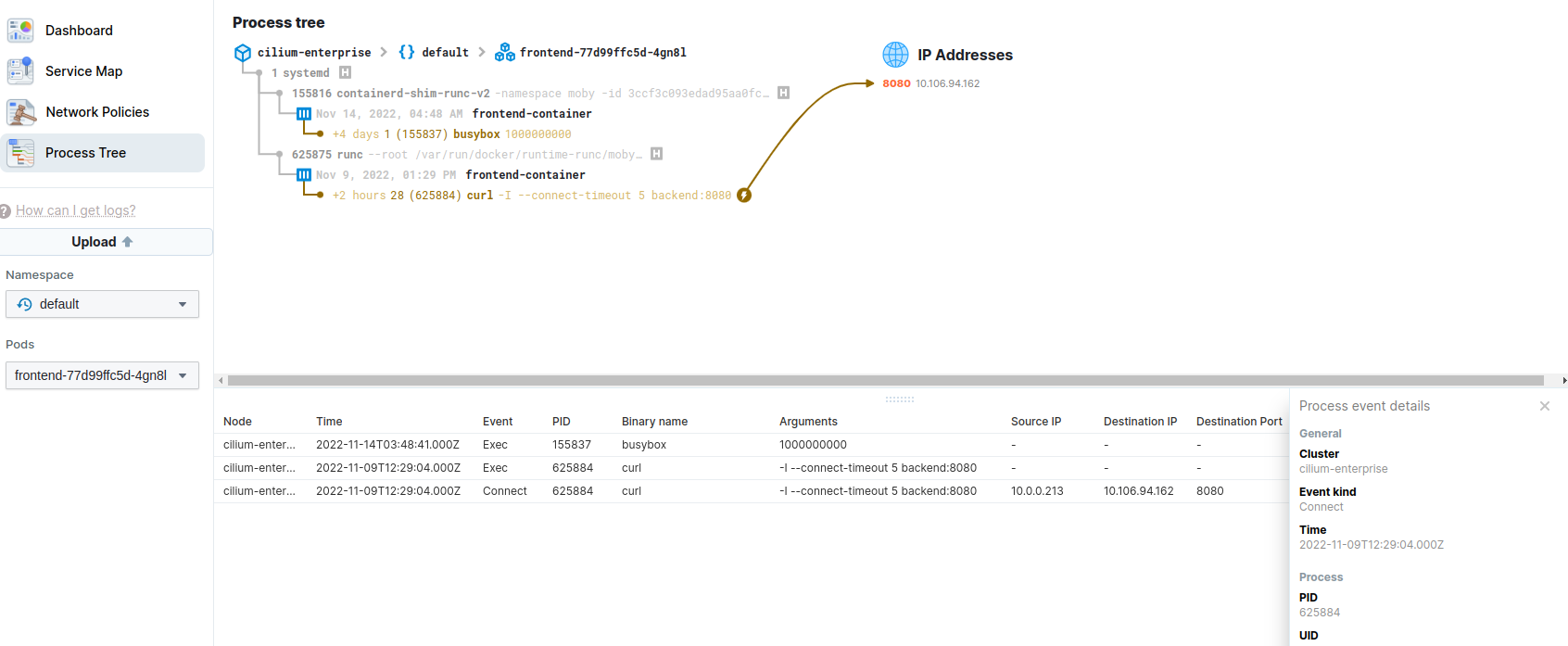
In the Hubble-UI open the Process Tree and click on the Upload Button. Upload the previously created export.log. Now you can select the default Namespace and one of the Pods, e.g. frontend-xxxxx-xxx.
 .
.
We see our previously executed curl command and that the process opened a connection to an IP on Port 8080.
By clicking on one of the event, e.g. the Connect event for the curl command, you get some more details for the selected event.